Devices
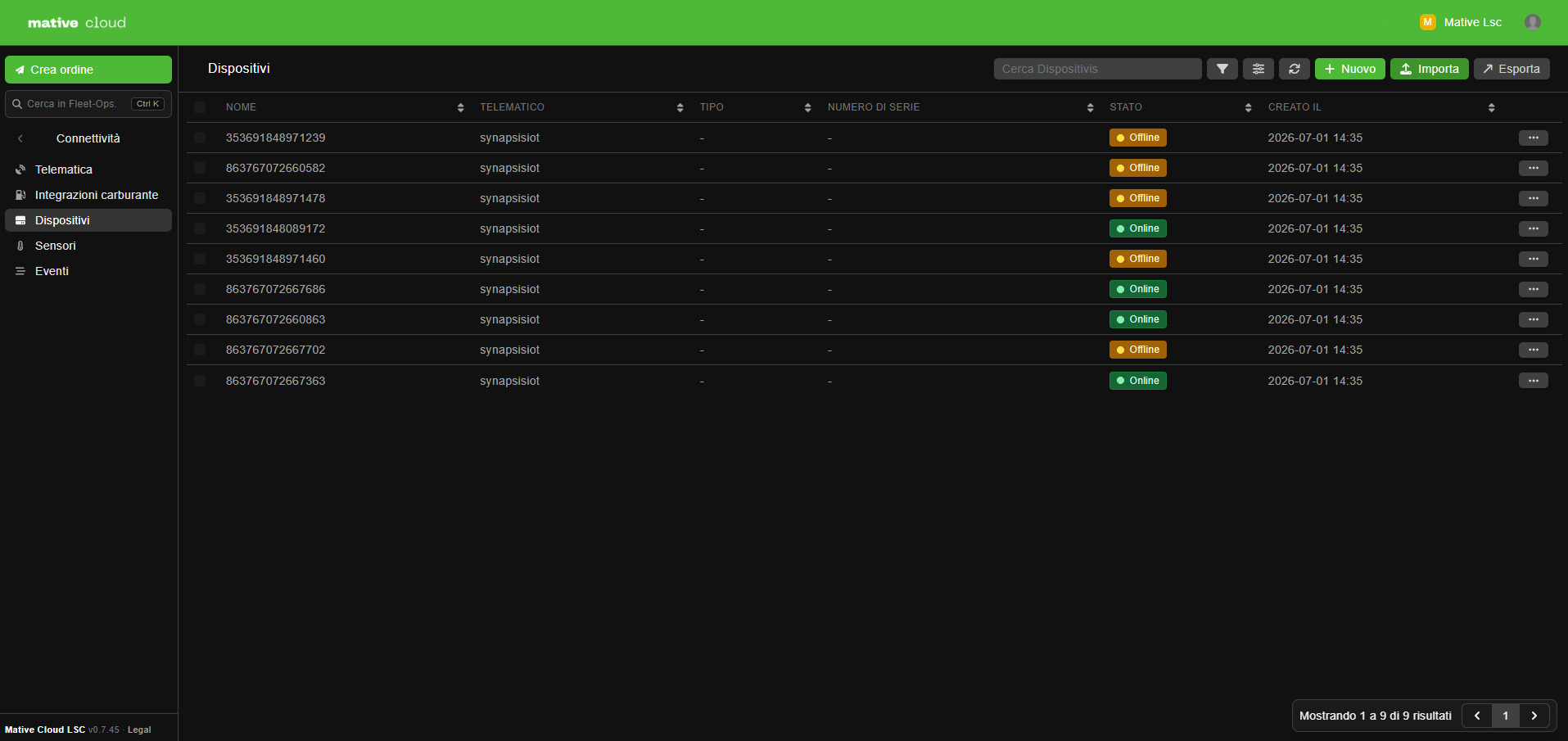
Devices are the physical hardware units connected to your fleet vehicles — GPS trackers, OBD-II scanners, dash cameras, and IoT sensors. While telematics modems are managed in the Telematics section (they bridge to a provider's cloud), Devices tracks the individual hardware installed in or on vehicles.
Device Categories
| Category | Examples |
|---|---|
| GPS Tracker | Standalone GPS tracker (non-OBD), asset tracker |
| OBD-II Scanner | Engine diagnostic reader via OBD-II port |
| Dash Camera | Front/rear facing cameras, event-triggered video |
| Temperature Sensor | Cold chain cargo monitoring |
| Humidity Sensor | Cargo humidity monitoring |
| Door Sensor | Cargo door open/close detection |
| Motion Sensor | Impact or vibration detection |
| Pressure Sensor | Tire pressure monitoring (TPMS) |
| Fuel Level Sensor | Tank-mounted fuel gauge |
Device Attributes
| Field | Description |
|---|---|
| Name | Device identifier |
| Type | Specific hardware type |
| Category | Device category (GPS, OBD-II, camera, sensor, etc.) |
| Vendor | Manufacturer or supplier |
| Description | Notes about the device |
| Status | active, inactive, offline, faulty |
| Meta | Additional key-value data (IMEI, firmware version, serial number) |
Adding a Device
- Navigate to Fleet Management → Connectivity → Devices
- Click + New Device
- Enter the Name, Type, and Category
- Set the Vendor and any identifying information in Meta (e.g., IMEI, serial number)
- Save
Linking Devices to Vehicles
A single vehicle can have multiple devices — for example, one GPS tracker, one OBD-II scanner, and one temperature sensor.
- Navigate to Fleet Management → Resources → Vehicles → [Vehicle]
- Click the Devices tab
- Click + Add Device and select from the device list
- Set the Mounting Location (dashboard, cargo area, wheel well, etc.)
- Save
Device Events
Every time a device sends data, a DeviceEvent is recorded. Types of events:
| Event Type | Data Captured |
|---|---|
| GPS | Coordinates, speed, heading, timestamp |
| OBD-II | RPM, fuel level, coolant temp, fault codes |
| Sensor | Temperature value, door status, motion event |
| Alert | Speeding, harsh braking, engine fault |
Access device events at Fleet Management → Connectivity → Devices → [Device] → Events, or via the vehicle detail panel.
Device Status Monitoring
| Status | Meaning |
|---|---|
active | Data received within the expected interval |
offline | No data received beyond the expected interval |
faulty | Reporting error codes or data quality issues |
Offline devices can be configured to automatically create an Issue and alert the fleet manager when they stop reporting. Configure this in Fleet Management → Settings → Notifications.